
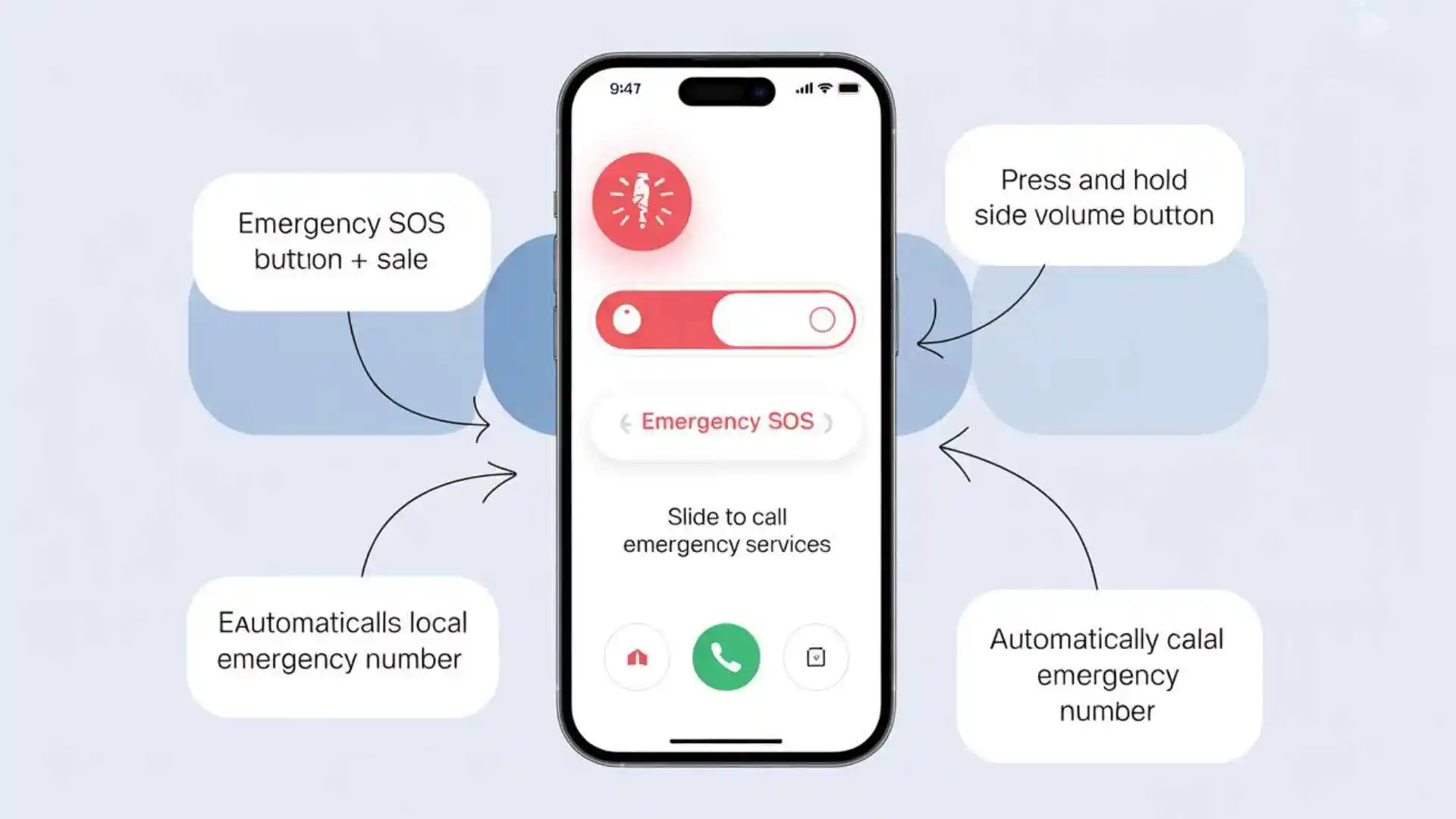
If you’ve ever unlocked your iPhone only to see SOS or SOS Only in the status bar, you know the feeling—panic mixed with confusion.No calls, no texts, no mobile data.
At first glance, it seems like your phone is broken. But in reality, SOS on iPhone doesn’t usually indicate hardware failure.
Most of the time, it points to a network connectivity issue, a SIM card problem, or a temporary carrier disruption.
This guide will help you understand exactly why you’re seeing SOS on your iPhone and give you step-by-step solutions that actually work.
No guesswork. No fluff. Just real fixes.
What Does “SOS” or “SOS Only” Mean on iPhone?
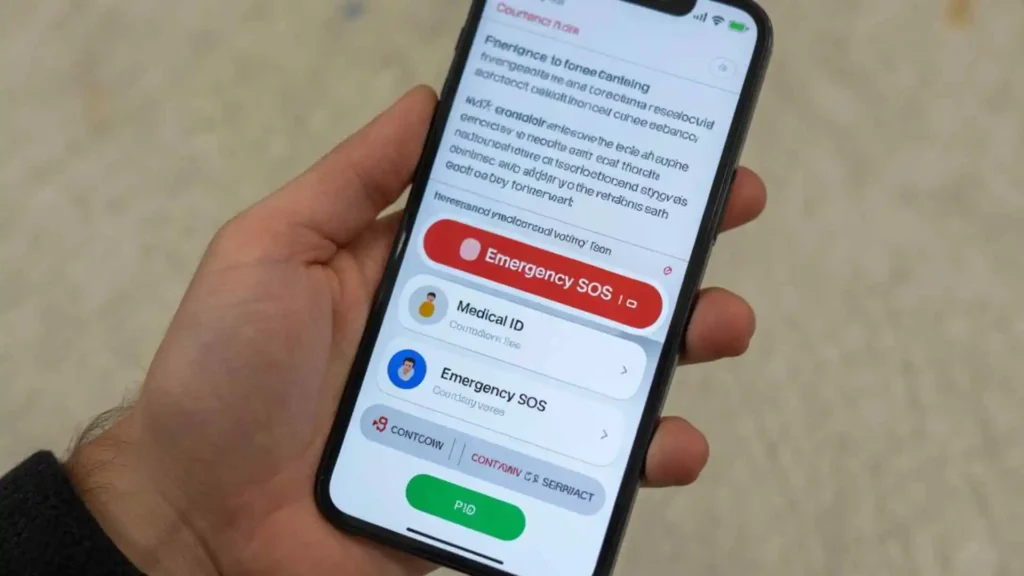
When your iPhone displays SOS Only, it is alerting you that:
- Your phone isn’t connected to your regular cellular network
- You cannot make standard calls or use mobile data
- You can still place emergency calls
This feature is designed by Apple to protect users in case of a network failure.
Even when normal network access fails, your iPhone will attempt to connect to any available cellular network for emergencies.
So while it might seem alarming, SOS Only is a safety feature, not a failure.
How SOS Mode Actually Works on iPhone
When your iPhone network connectivity drops, here’s what happens:
- Your iPhone searches for your carrier network.
- If it cannot authenticate, it attempts to connect to any nearby carrier that supports emergency calls.
- While connected to a temporary network, you can still dial emergency numbers like 911, but normal calls, texts, and mobile data will remain unavailable.
This is why you might see SOS even when your iPhone seems “dead” to regular services.
Main Reasons Your iPhone Shows SOS
Poor Network Coverage
The most common cause of SOS on iPhone is weak or no signal.
Areas where this often happens include:
- Rural locations with few towers
- Underground garages or basements
- Elevators and tunnels
- Remote highways and mountainous regions
When the LTE or 5G signal disappears, the iPhone switches automatically to SOS Only to ensure emergency calls can still be made.
Temporary Carrier Issues or Server Downtime
Sometimes the problem isn’t your phone at all.
Carriers may experience:
- Server outages
- Maintenance downtime
- Localized network disruptions
For example, regional carriers like Appalachian Wireless might experience temporary outages in certain areas.
If the carrier’s servers fail, your iPhone cannot authenticate your account, which triggers SOS Only.
SIM Card Problems
Your SIM card is essentially your identity on the cellular network.
Issues that can cause SOS on iPhone include:
- Damaged SIM card
- Loose or incorrectly inserted SIM
- Deactivated or expired SIM
Even minor scratches or dust on the SIM can interfere with network connectivity.
Airplane Mode Was Enabled
Sometimes the simplest reason is the most overlooked.
Airplane Mode disables all wireless communication.
If it remains on:
- Your iPhone cannot connect to cellular networks
- Mobile data stops working
- The phone displays SOS Only
Check your Control Center to ensure Airplane Mode is off.
Software Bugs or iOS Update Glitches
Occasionally, iOS updates cause network instability.
Signs of a software bug include:
- Signal drops after installing an update
- SOS Only appearing intermittently
- Mobile data not working despite strong signal
These glitches are often resolved in subsequent updates or minor patches.
Outdated Carrier Settings
Carriers release periodic updates to optimize network performance.
If you skip a carrier settings update:
- Your iPhone may struggle to connect to LTE or 5G
- Emergency calls might work, but normal services fail
- SOS Only appears
Always keep carrier settings up to date for smooth connectivity.
Network Settings Corruption
Over time, saved networks, VPNs, and cellular preferences can conflict.
Corrupt network settings can cause:
- Random SOS Only messages
- Mobile data not connecting
- Repeated network drops
A reset often fixes these issues.
Hardware Damage
Recent drops, water exposure, or internal antenna damage can also trigger SOS.
If your iPhone shows SOS everywhere, even with multiple SIMs and after software troubleshooting, hardware repair may be necessary.
Step-by-Step Fixes for SOS Only on iPhone
Check Signal Strength in a Different Location
First, ensure the issue isn’t coverage-related:
- Move outdoors
- Drive a few blocks away
- Check if the signal returns
If it does, weak coverage was the issue.
Toggle Airplane Mode
- Open Control Center
- Turn Airplane Mode ON
- Wait 10 seconds
- Turn it OFF
This forces your iPhone to reconnect to nearby cellular towers.
Restart Your iPhone
A simple restart can fix many network issues:
- Hold the power button
- Slide to power off
- Wait 30 seconds
- Turn your iPhone back on
This refreshes network connectivity and often resolves SOS Only issues.
Remove and Reinsert SIM Card
- Power off your iPhone
- Remove the SIM tray
- Inspect for dust, scratches, or damage
- Reinsert carefully
If the SIM card is worn, request a replacement from your carrier.
Check for Carrier Settings Update
Go to:
Settings → General → About
If an update is available, install it.
Carrier updates can resolve authentication issues and fix network connectivity problems.
Update iOS
Software updates often fix network-related bugs.
Go to:
Settings → General → Software Update
Installing the latest iOS update may restore normal service.
Reset Network Settings
If the problem persists:
Settings → General → Transfer or Reset iPhone → Reset → Reset Network Settings
This clears:
- Saved Wi-Fi networks
- VPN passwords
- Cellular preferences
It does not delete apps or personal data, but you will need to re-enter Wi-Fi passwords.
Contact Your Carrier
Persistent SOS Only may indicate carrier-side issues:
- Billing problems
- SIM activation errors
- Network restrictions
Contact your carrier’s customer service for verification.
Restore iPhone to Factory Settings (Last Resort)
If all else fails, restoring your iPhone can fix deep software corruption.
Before proceeding:
- Back up your data via iCloud or iTunes
Then:
Settings → General → Transfer or Reset iPhone → Erase All Content and Settings
This step is only necessary if software or configuration corruption persists.
Quick Troubleshooting Table
| Problem Cause | How to Confirm | Solution |
| Poor coverage | Signal returns elsewhere | Move to a better location |
| Carrier outage | Others report same issue | Wait or contact carrier |
| SIM damage | SIM not detected | Replace SIM |
| Software bug | Issue started after update | Install latest iOS update |
| Network settings corruption | Random SOS appearances | Reset network settings |
| Hardware issue | Persistent SOS everywhere | Visit Apple Authorized Repair |
Additional Tips to Avoid SOS Only on iPhone
- Regularly update iOS and carrier settings
- Avoid physical damage and water exposure
- Keep a backup of your network settings before major updates
- Monitor carrier status for outages via official apps or websites
Frequently Asked Questions
Does SOS mean my iPhone is broken?
Not usually. SOS Only typically indicates a network or SIM problem, not a hardware failure.
Can I still use Wi-Fi when SOS appears?
Yes. Wi-Fi functions independently from cellular networks. You can still browse the web, use apps, and make calls over Wi-Fi.
Why does my iPhone switch between signal bars and SOS?
This usually indicates unstable network coverage or weak LTE signal. Moving to a location with stronger signal often fixes this.
Will resetting network settings delete my data?
No. It only removes network configurations such as Wi-Fi passwords, VPNs, and APN settings.
Conclusion
Seeing SOS on your iPhone can be alarming, but in most cases, it’s not catastrophic.
It often stems from network coverage gaps, SIM card issues, or carrier outages.
Start with simple steps like toggling Airplane Mode, restarting your iPhone, or reinserting the SIM.
If needed, update iOS, reset network settings, or contact your carrier.
For persistent issues, a factory restore or hardware repair may be required.
By following these steps, most users regain full service quickly, ensuring that their iPhone network connectivity works reliably once again.

Asher Blake is a passionate wordsmith whose pen dances between pain and purpose. Known for his emotionally rich quotes and soul-stirring reflections, Asher has become a quiet force in the world of inspirational writing. His words don’t just decorate pages — they reach into hearts, offering comfort, clarity, and courage.
With a background in creative writing and an unshakable love for literature, Asher began his journey by collecting forgotten feelings and turning them into lines that linger. His work touches on self-worth, healing, love, heartbreak, and the small moments that define us. He believes that even a single sentence can light up someone’s darkest day.
Driven by empathy and depth, Asher Blake writes not to impress — but to connect. His quotes are shared across the globe by those searching for meaning, motivation, and emotional release. Whether you’re lost in love, rebuilding your confidence, or simply pausing to breathe, his words feel like they were written just for you.
Books by Asher Blake
“Ink & Ache: Quotes That Feel Like Scars”
A collection of raw, emotional quotes about love, loss, and becoming whole again.
“Still Learning to Breathe”
An inspiring blend of healing quotes and reflections for anyone learning to let go.
“Unfinished Thoughts”
A poetic journey through scattered emotions, fleeting moments, and the beauty of not having all the answers.